Closing Income Statement by fund/restriction type
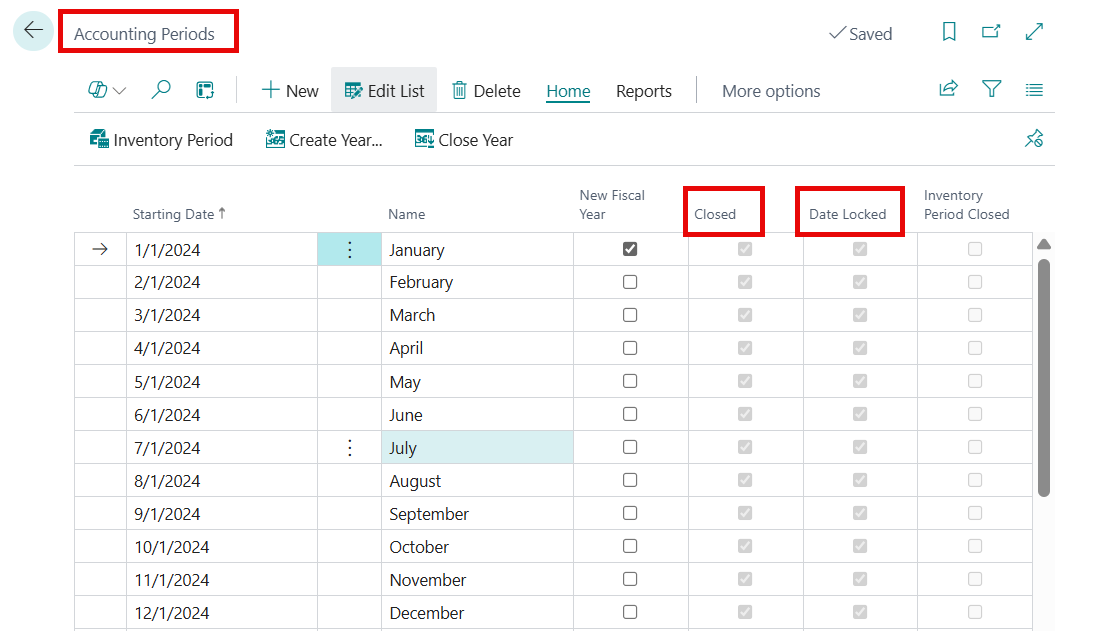
Search from the ribbon for Accounting Periods and select the related link.
On the ribbon select Process>Close Year.
A message appears showing the next fiscal year that requires closing. You cannot close a year if the previous years have not been closed.
Select Yes to close the year listed in the message. The process will mark the Closed, and Date Locked fields for each period in the fiscal year.
Tip
When the fiscal year is closed, user may still post entries to the fiscal year. The year will need to be closed again for the additional entries.

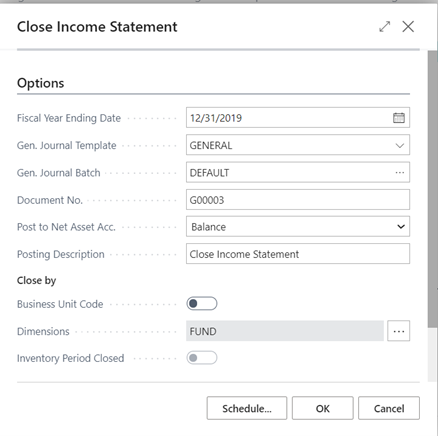
Search for Close Income Statement from the ribbon and select the related link.
In the request page enter the Fiscal Year Ending Date value, the General Journal Template, and the General Journal Batch. The Post to Net Asset Acc. allows the user to choose between posting detail entries or balance entries. The Posting Description shows on the ledger entries and may be changed by the user. The entries will post by fund by default.
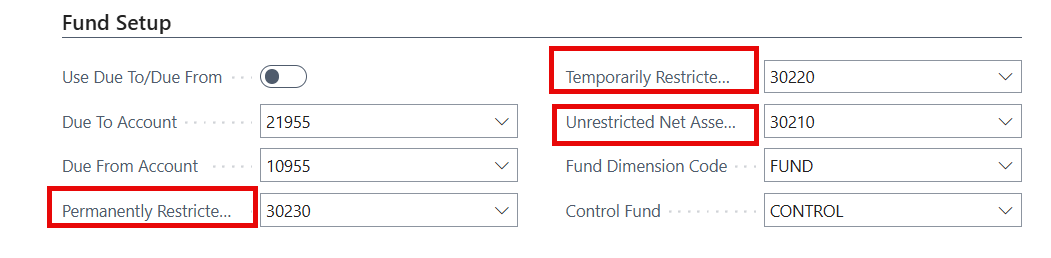
If the user would like to enter an additional dimension, click on the Edit Assist button, and select the additional dimension. The entries will post to the selected template and batch to allow the user to review the entries before posting. The balance accounts used will be reflected in the Fund Accounting Setup page on the Fund Setup tab and the designated restriction type entered on the Fund Card.
A posted batch is created in the General Journal.